
v1.0.0 separates, on screen, the work you hand to the AI from the decisions that stay with the designer. When the AI needs a decision it asks with a multiple-choice question card, the run mode sets how much the AI may do on its own, and operations that cannot be undone stop at an approval card. The design features gain the calculation chain from dq-parameter measurement to the efficiency map, a baseline model proposed from a specification, template grafting for JMAG Express, and batch runs of analysis-group optimization.
Conversation and controlsMultiple-choice question cards, task plan (to-do) and progress display, Plan / Manual / Auto run modes, clearer approval cards
Skills and instructionsChoosing a skill with "/", creating your own skills through chat, additional instructions for the AI
ScreenEnglish display, image pasting and zoom, refreshed layout, LLM connection settings
Design featuresMotor characteristics and efficiency maps, baseline model proposal from a specification, template grafting for JMAG Express, batch runs for analysis-group optimization
How much the AI does, and when it asks
You now decide how much the AI does on its own, and the decisions that are yours are asked during the work. The run mode sets how much is handed over, question cards take your decisions, and approval cards show what will change before it does.
Answer a decision by picking an option (video 0:19)
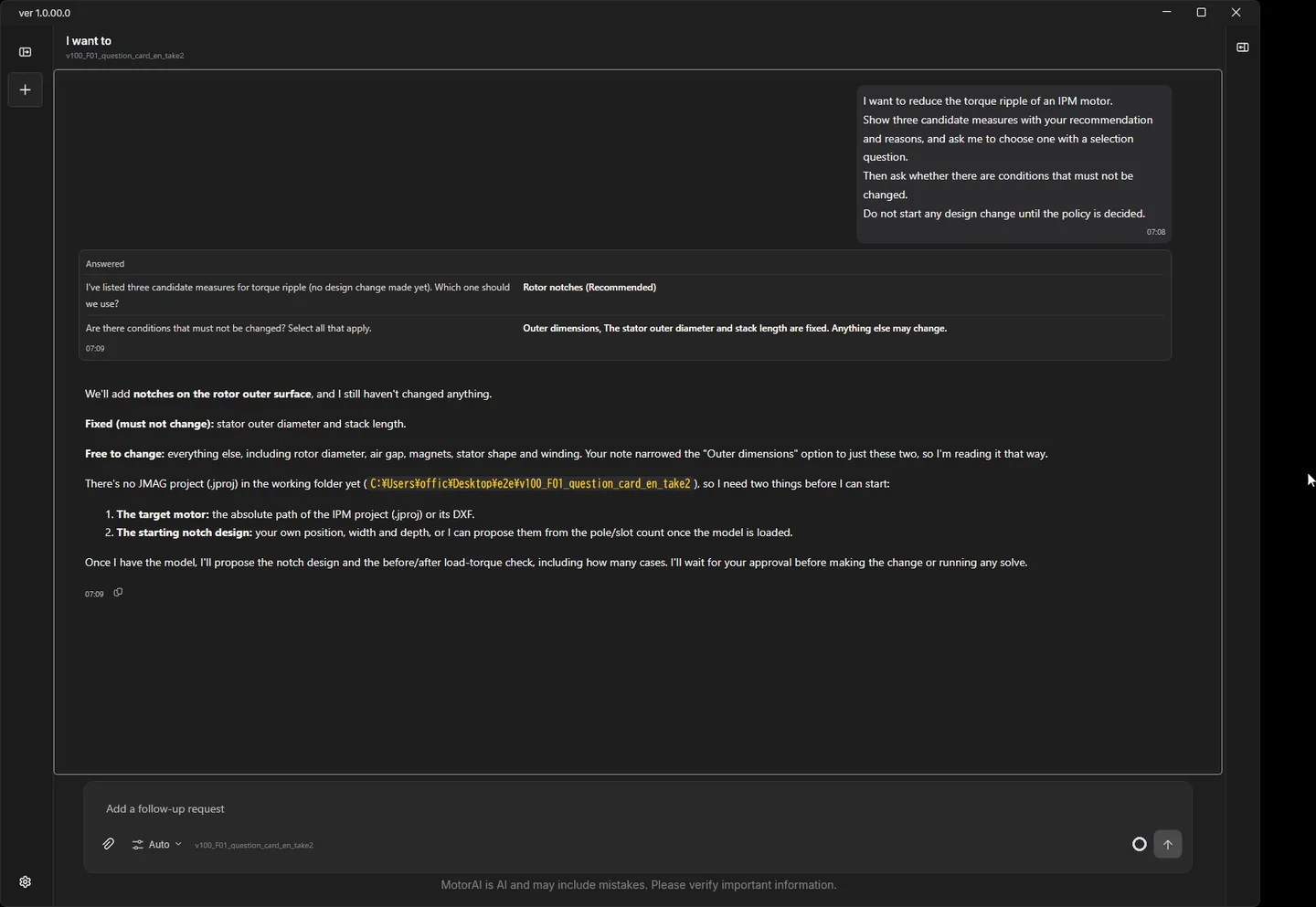
When the AI needs a decision from you, it now asks through a question card with options. If none of the options fit, you can type your own answer under "Other". The summary the AI wrote just before the question stays visible, so you can see why it is asking.
I want to reduce the torque ripple of an IPM motor.
Show three candidate measures with your recommendation and reasons, and ask me to choose one with a selection question.
Then ask whether there are conditions that must not be changed.
Do not start any design change until the policy is decided.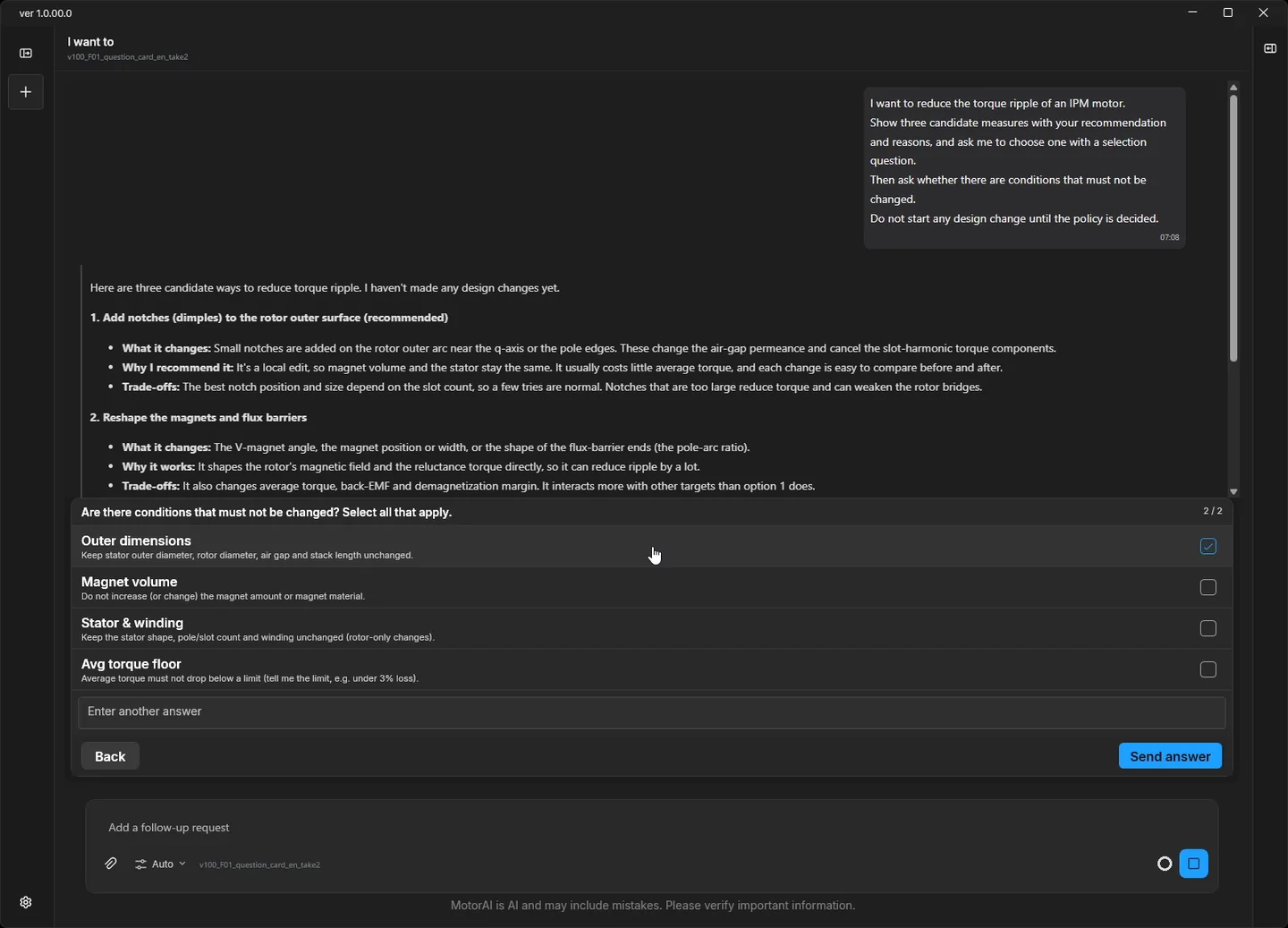
Choose how much the AI does on its own (video 1:08)
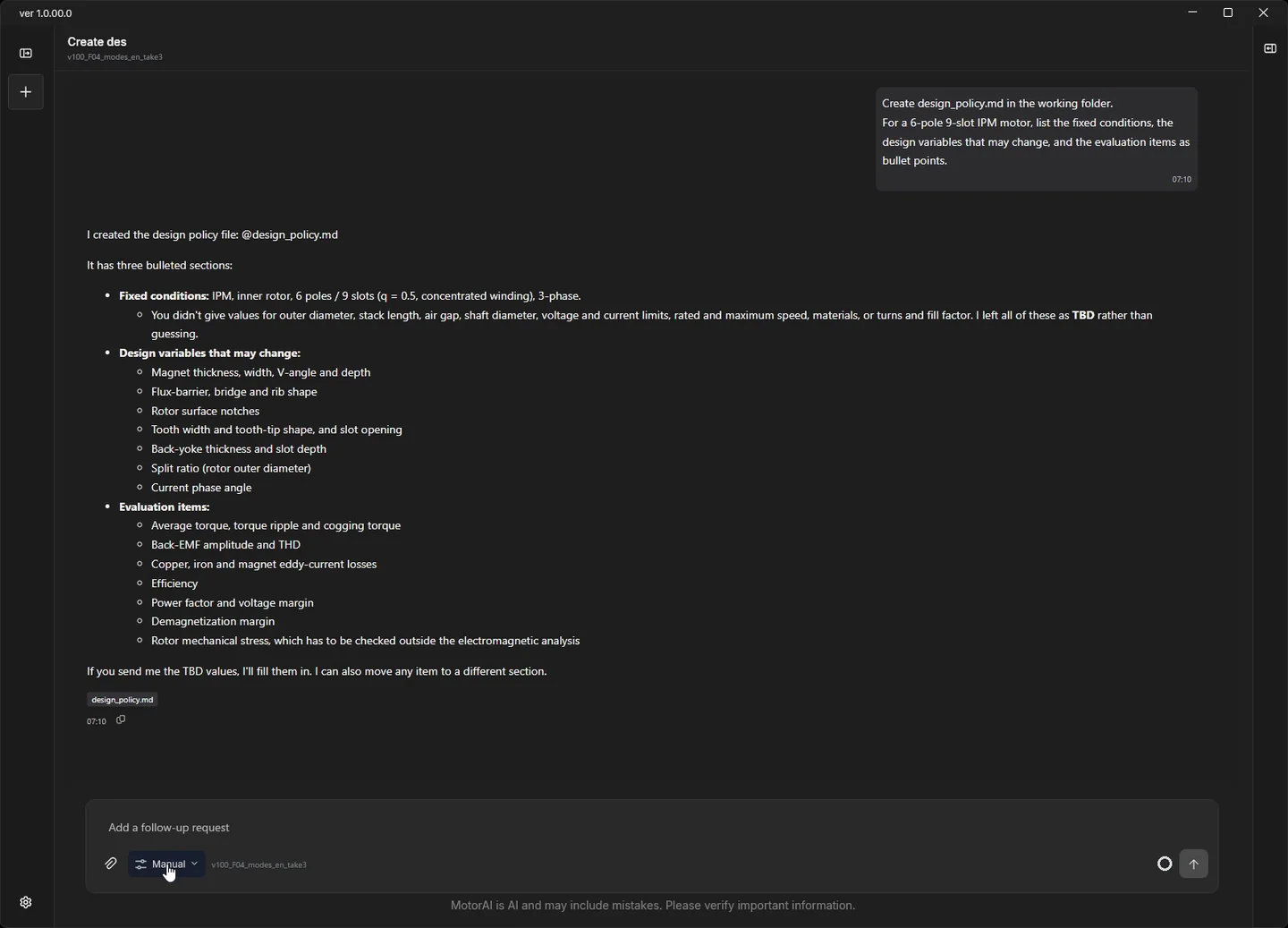
The mode button in the input box switches between the Plan / Manual / Auto run modes and sets how much the AI may do on its own. You can change it before sending and while a task is running.
- Plan: investigates and proposes a plan only; no file or model is changed. After reading the plan you can hand over the rest with "Approve and run automatically".
- Manual: asks before every operation that changes something.
- Auto: asks only before irreversible or long-running operations.
Create design_policy.md in the working folder.
For a 6-pole 9-slot IPM motor, list the fixed conditions, the design variables that may change, and the evaluation items as bullet points.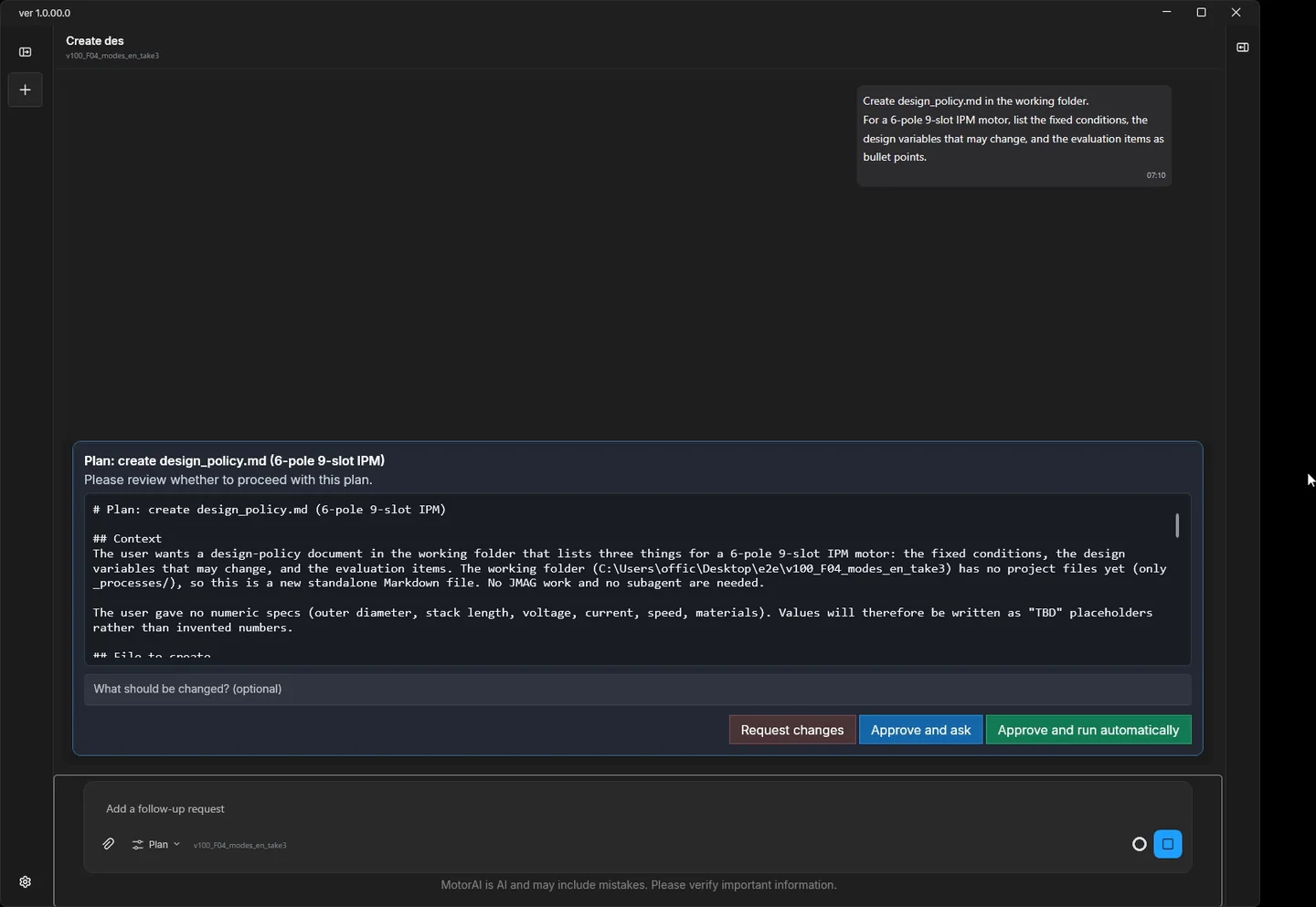
See what will change before it runs (video 2:18)
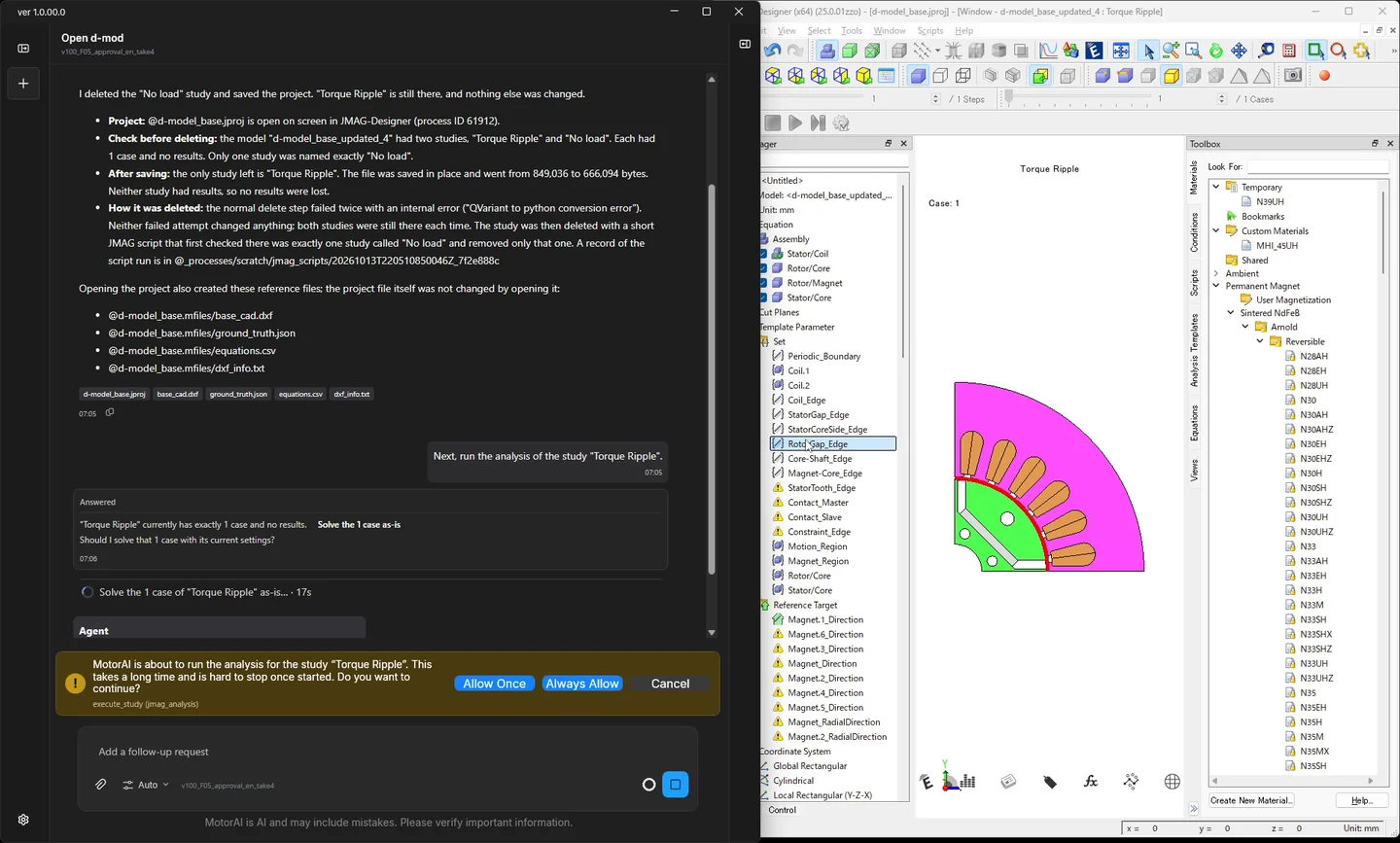
Approval cards now state what will be done to what, such as "Delete the study 'No load'". For irreversible or long-running operations the card also shows the impact.
Open d-model_base.jproj in the working folder with JMAG.
Confirm that the study "No load" exists, delete only that study and save. Keep "Torque Ripple" and change nothing else.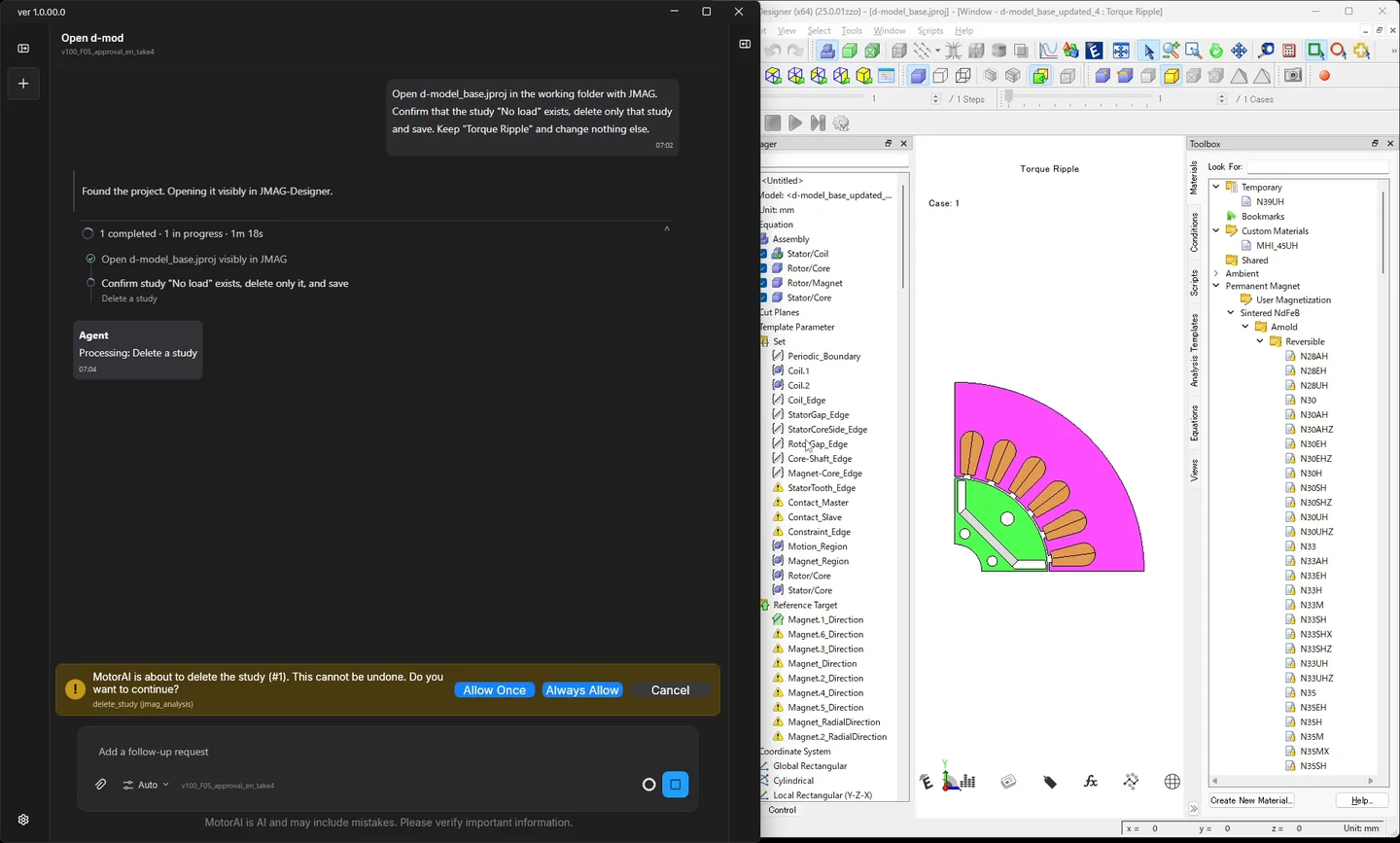
Skills and additional instructions
Choosing a skill with "/" (video 3:38)
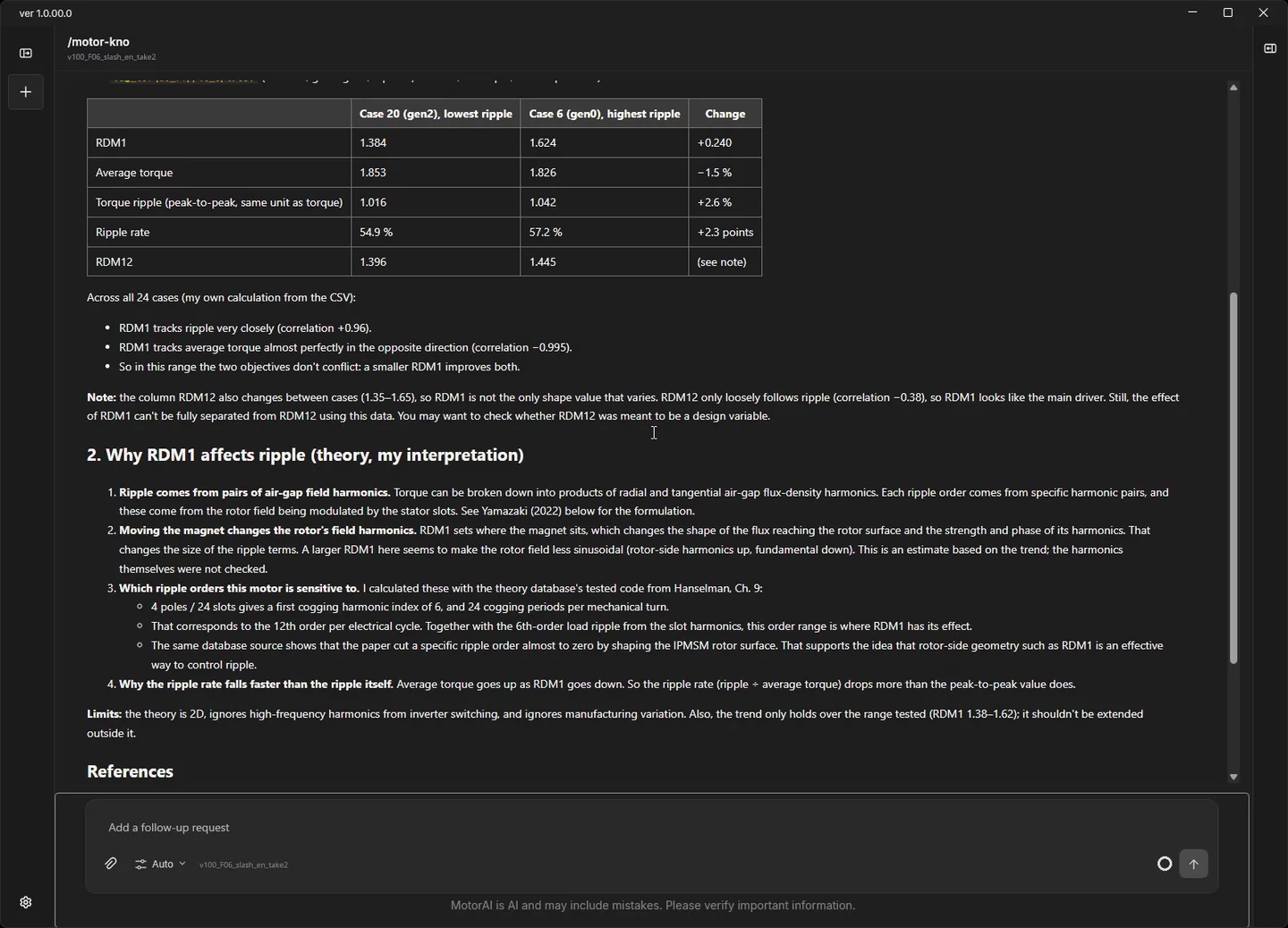
Typing "/" at the start of the input box lists the skills; a few letters narrow the list, and the chosen skill is used for the request. Here the batch result of an analysis-group optimization (CSV) is in the working folder, and the motor-theory-search skill is asked to explain the result with sources from the theory database.
/motor-knowledge:motor-theory-search ag_torque_ripple_opt.csv in the working folder is the batch result of an analysis-group optimization (maximize average torque, minimize torque ripple). The design variable is the magnet placement dimension RDM1. Compare the lowest- and highest-ripple cases and explain briefly, with sources from the theory database, why the RDM1 difference affects the ripple. Do not run any analysis.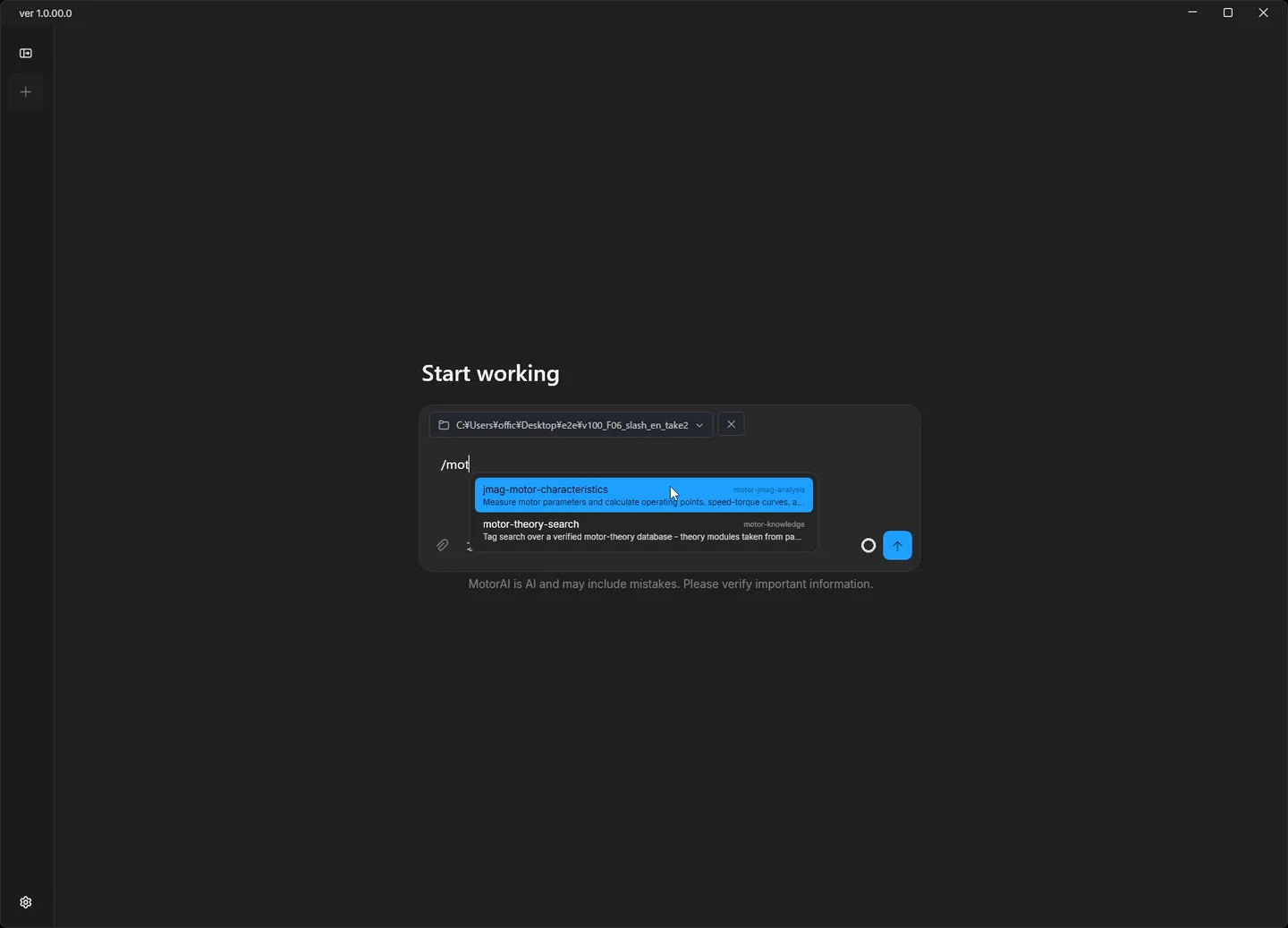
Creating your own skills through chat (video 4:43)
Anything you ask for in the same way every time, such as a report format, can become a skill just by asking in chat. It appears in the "/" list from the next message, without restarting the app.
Turn the format for reporting motor evaluation results into a skill.
Skill name: eval-table. Content: a Markdown table in the order operating point, average torque, torque ripple, losses, evaluation conditions; values not obtained are marked "not obtained".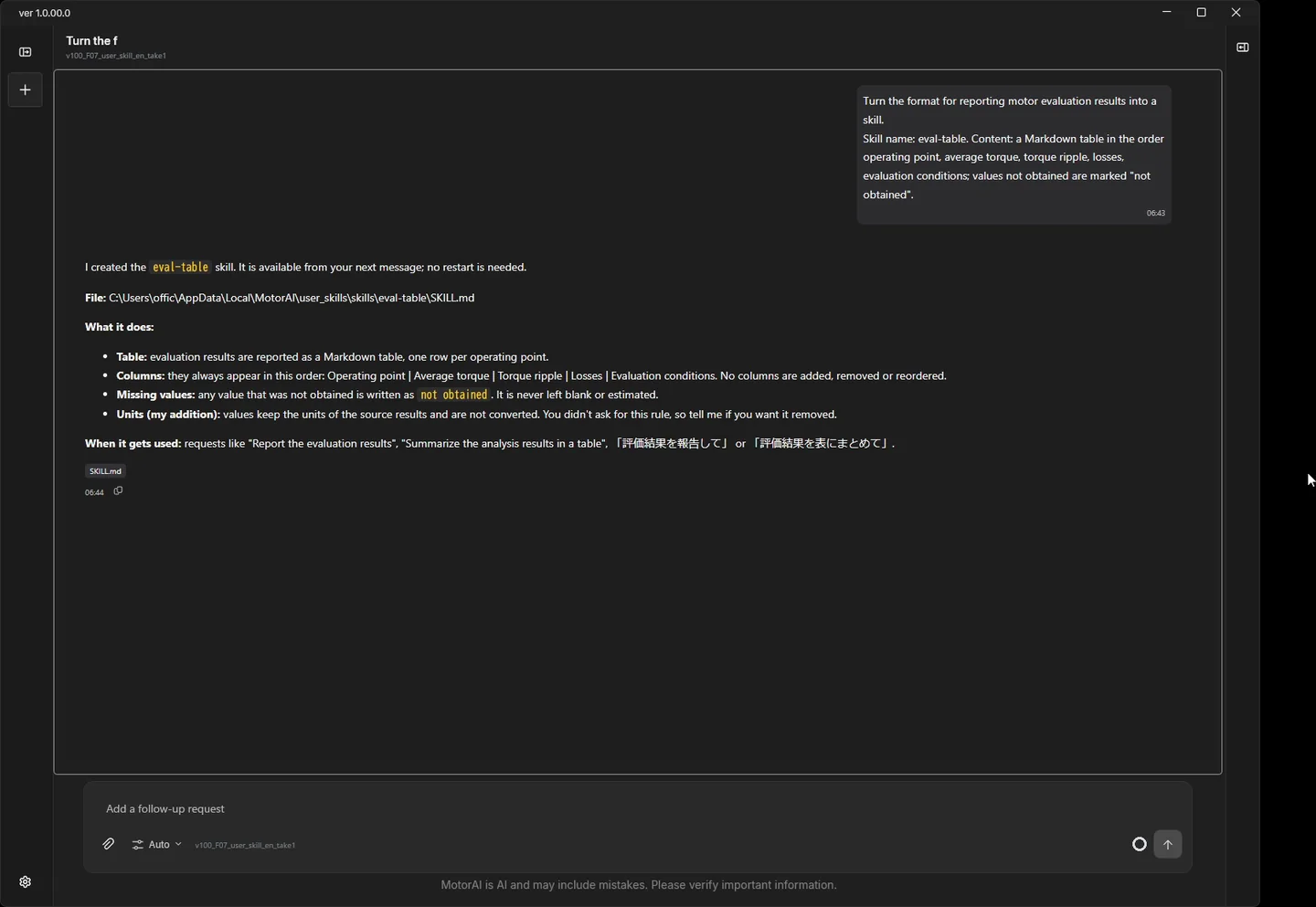
/motorai-user-skills:eval-table Summarize this result: 3000 rpm, 20 A, average torque 1.84 Nm, ripple 12 %, iron loss 8.2 W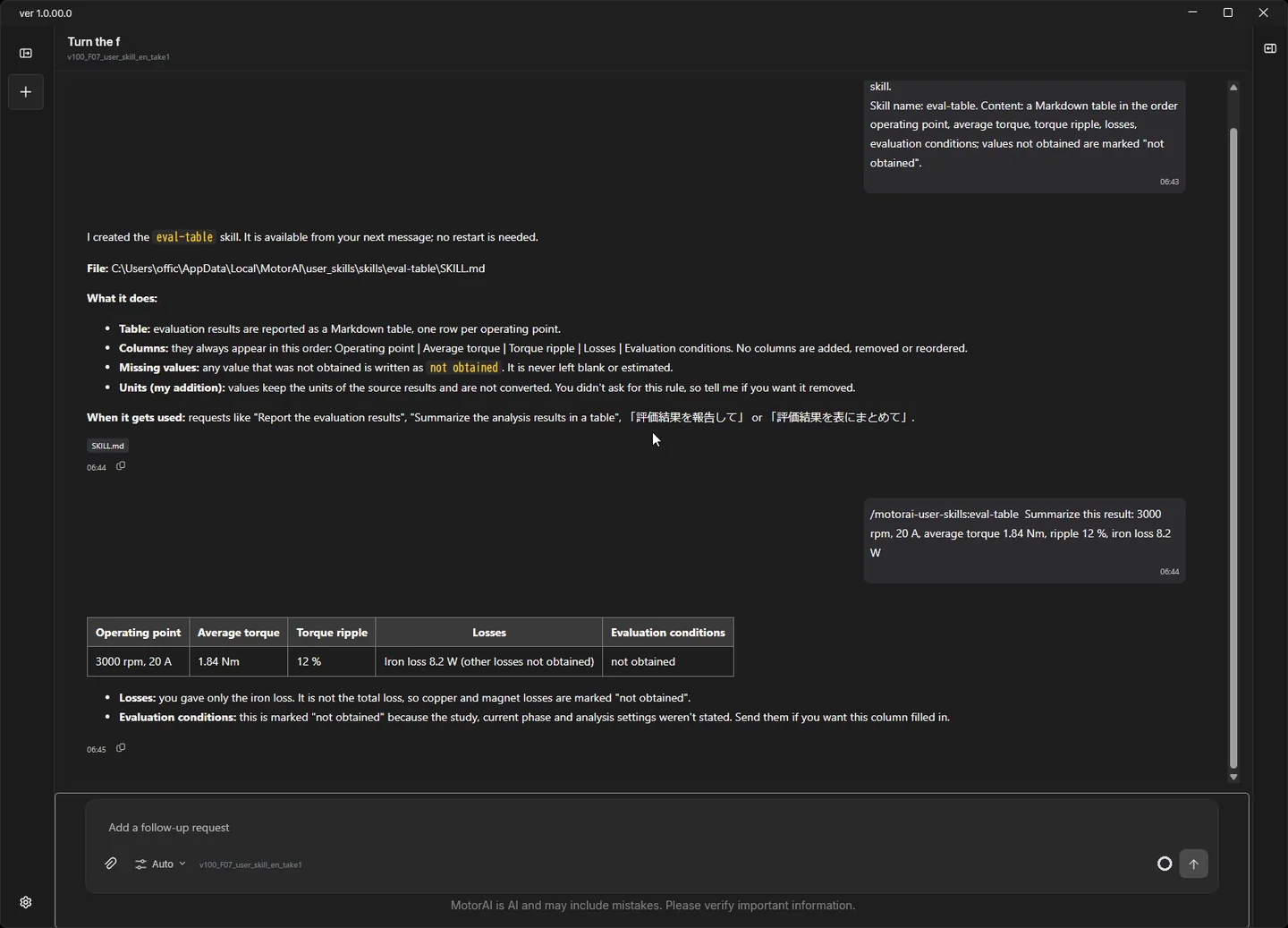
Additional instructions for the AI (video 5:34)
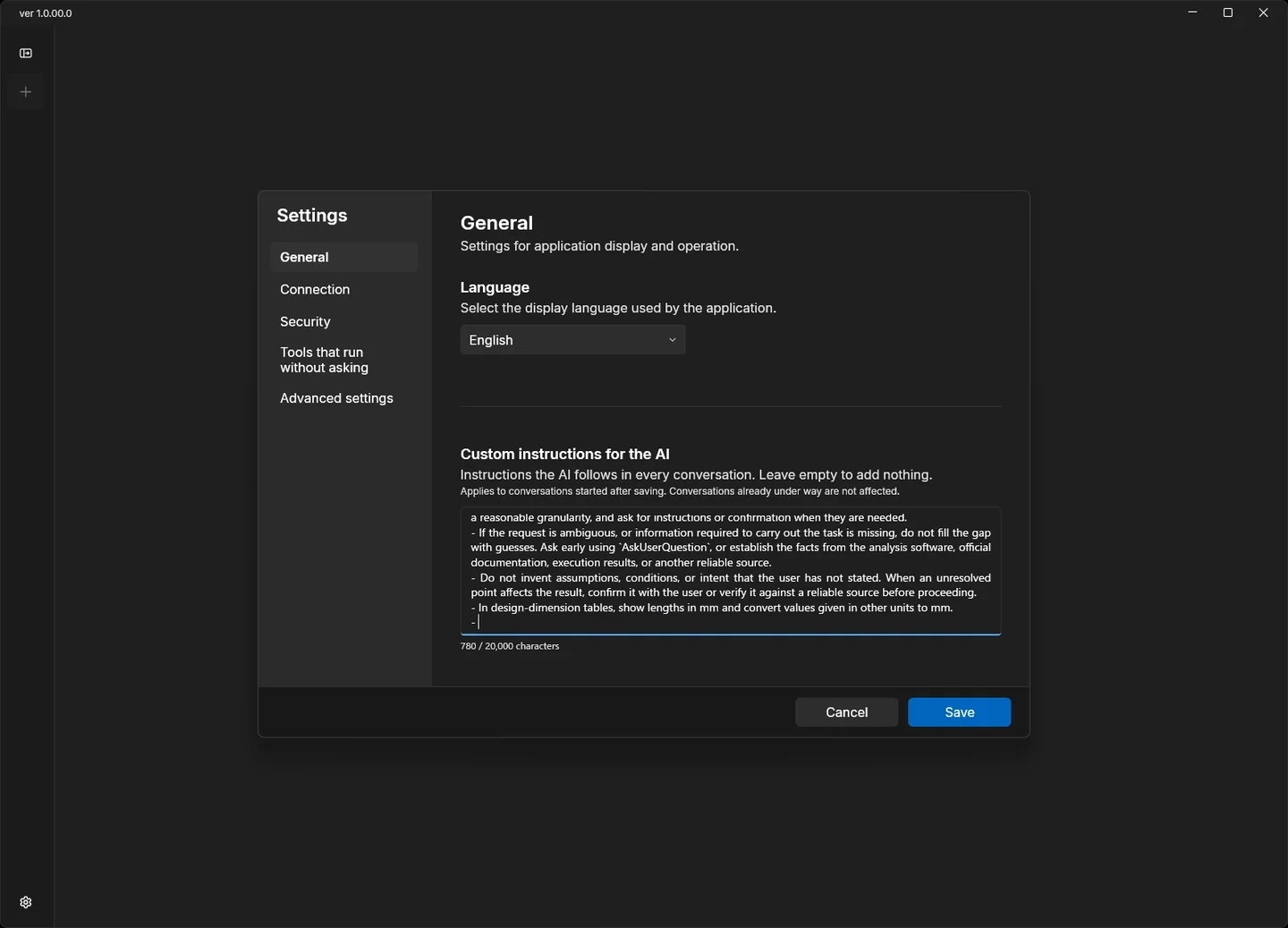
"Additional instructions for the AI" in Settings holds rules the AI should always follow, such as which units to use. A ready-to-use example is filled in by default. Here one line was added: in design-dimension tables, show lengths in mm and convert values given in other units to mm.
Put a motor with outer diameter 0.12 m, stack length 0.05 m and air gap 0.0006 m into a design-dimension table. Do not use tools.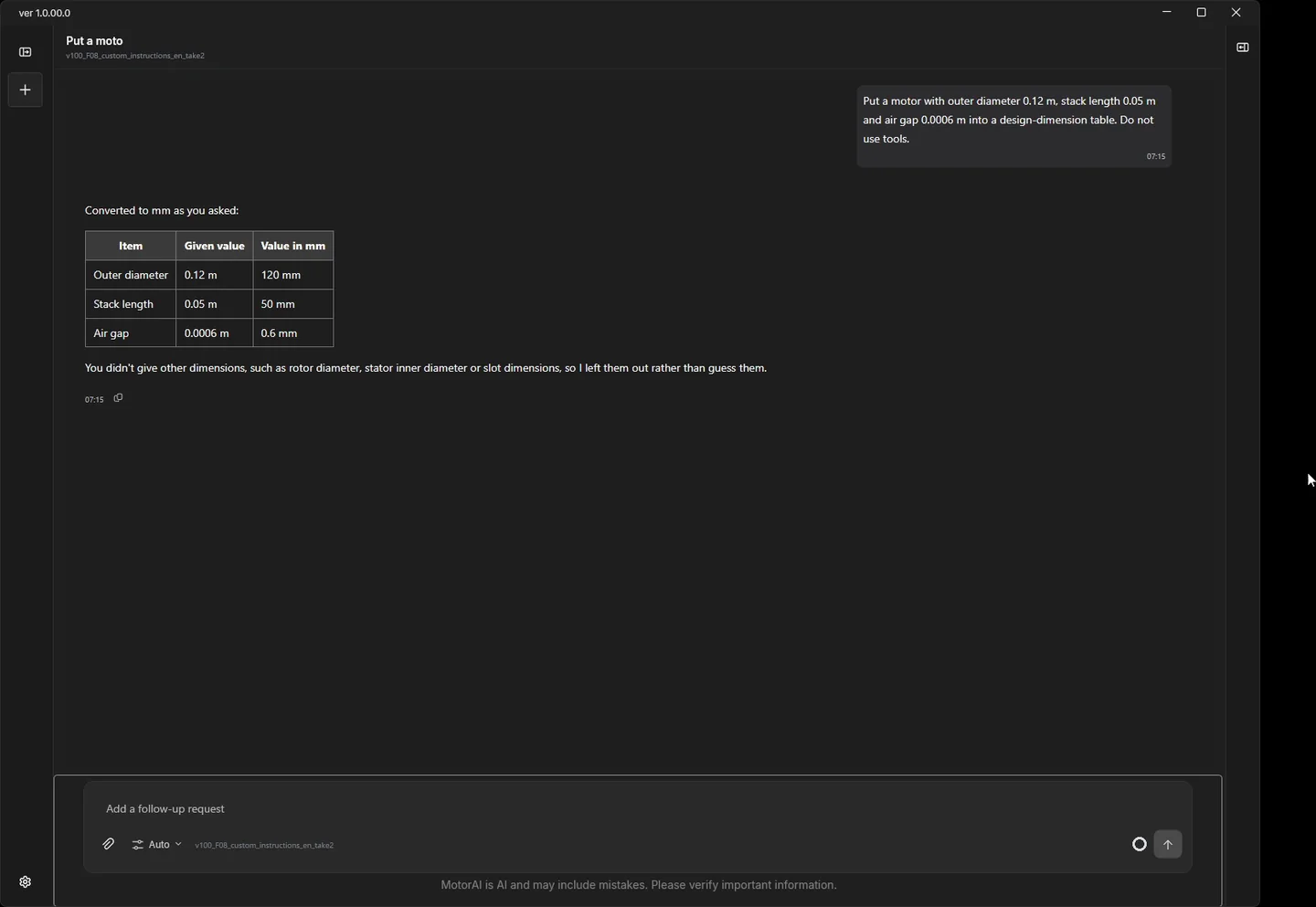
English display and image pasting
English display (video 6:09)
The display language can be set to Japanese or English under Settings. The AI answers in that language, or in the language you write in if it differs.
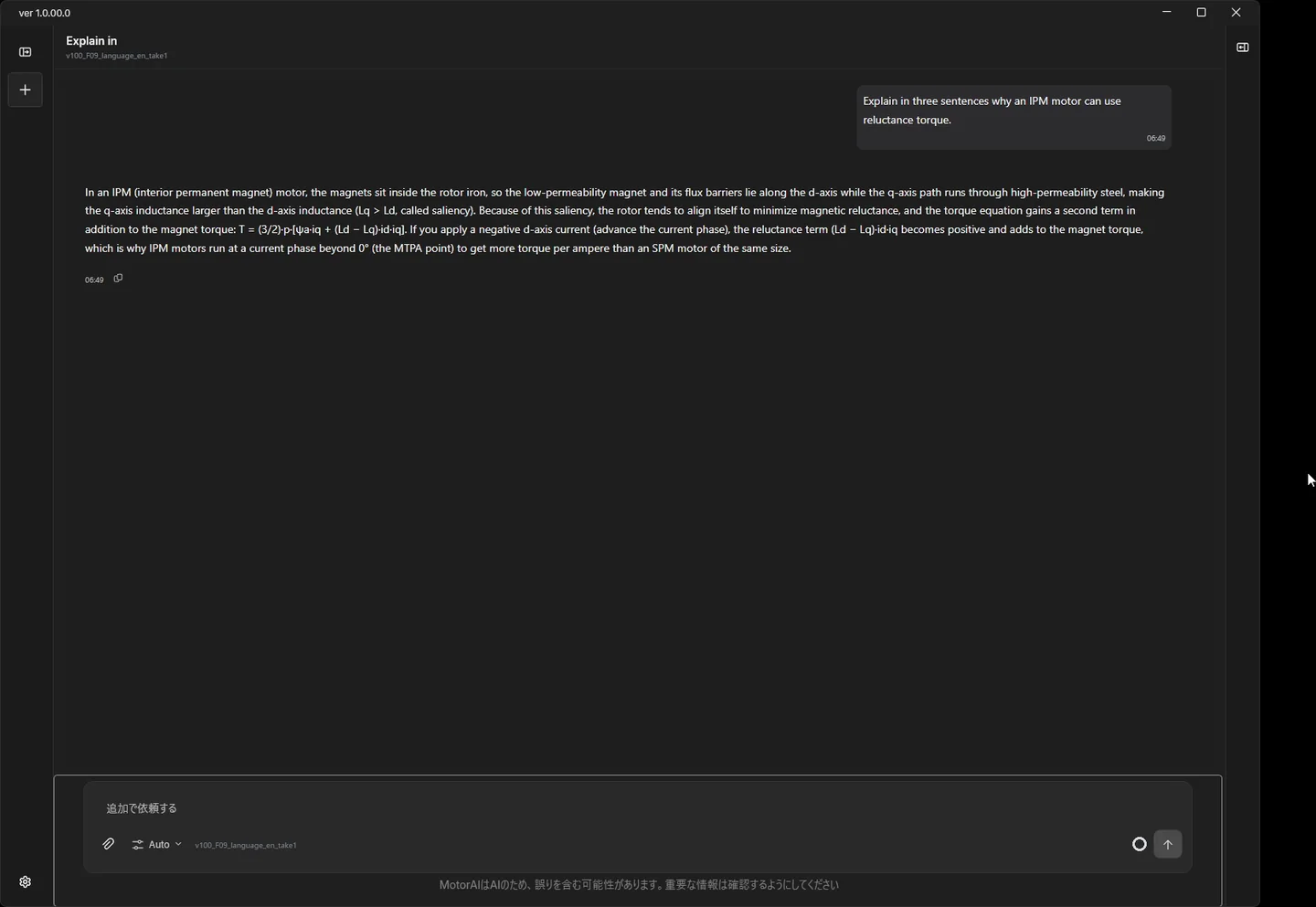
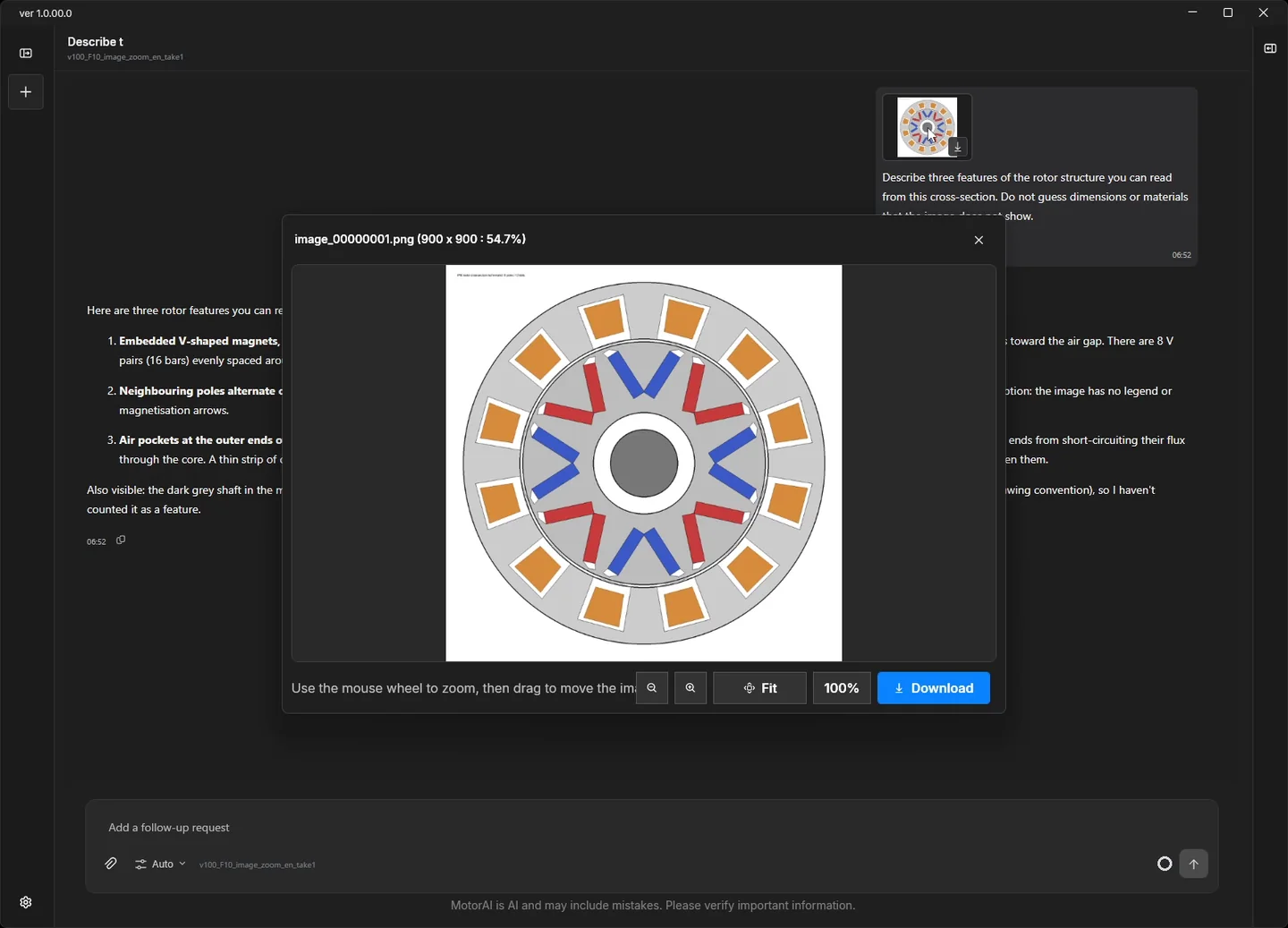
Image pasting and zoom (video 6:59)
Images can be pasted into the chat with Ctrl+V or by drag and drop. Ctrl+"+" and Ctrl+"-" zoom the whole window, and the conversation and image previews can be zoomed separately.
Describe three features of the rotor structure you can read from this cross-section. Do not guess dimensions or materials that the image does not show.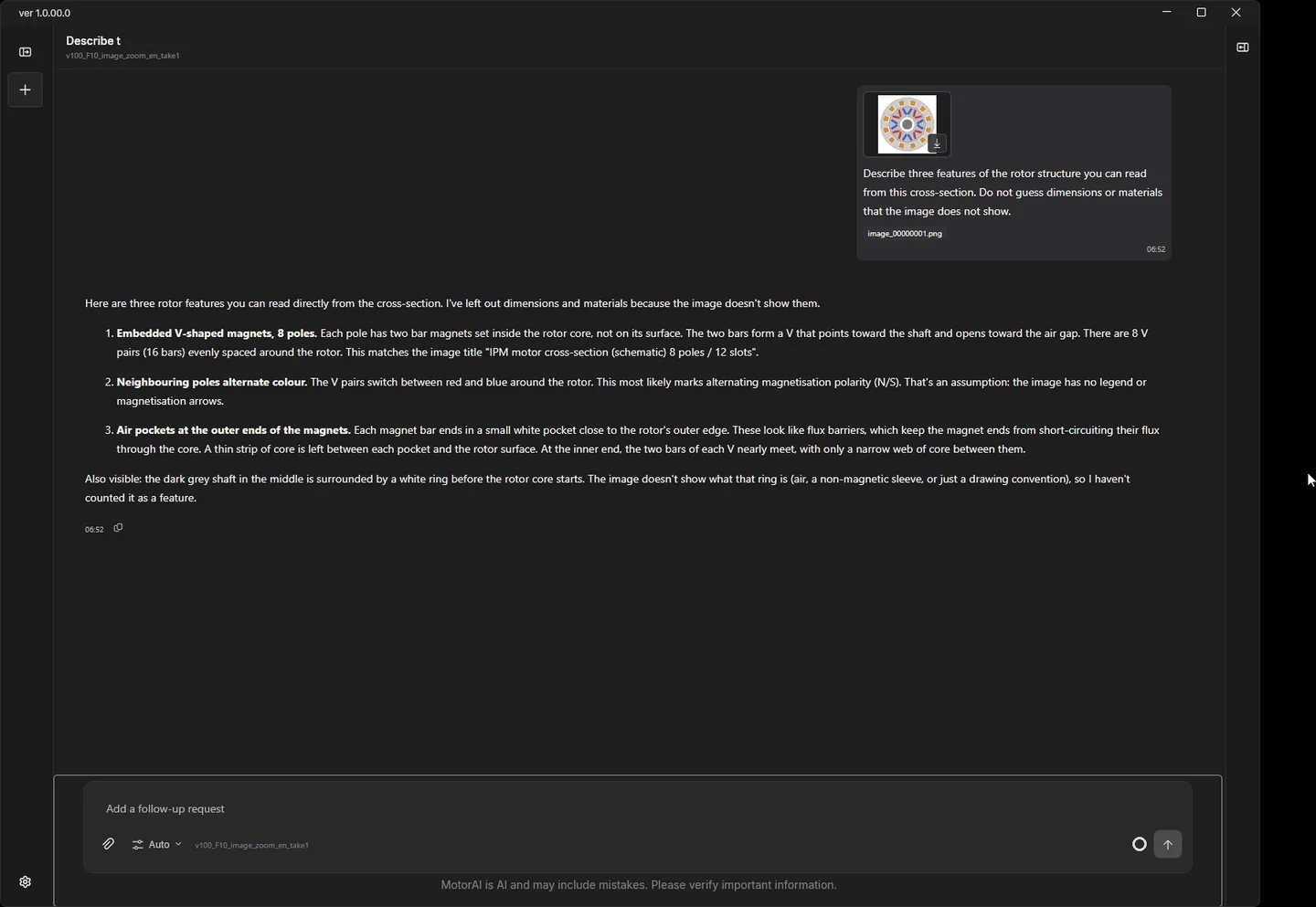
Motor characteristics and efficiency maps (video 7:55)
The AI drives JMAG to measure the dq parameters and derives the motor parameters, the speed-torque characteristic and the efficiency map. In the video this is done in three requests, checking the result of each stage.
The first request measures the dq parameters. The AI plans the analysis over currents and phases, states the number of cases and the expected duration, and runs it.
Open d-model_base.jproj in the working folder with JMAG and obtain Ld, Lq and the magnet flux linkage by analysis over several currents and phases.
The ratings of this motor are 165 V maximum (treat it as the DC bus voltage), 5 A rms maximum current, 3 A rms rated current and 1.8 Nm rated torque. Later I want the speed-torque characteristic from 0 to 6000 rpm under these voltage and current limits.
To see the trend first, use a coarse grid of 3 current amplitudes (0, 4.24 and 7.07 A, i.e. 0, 3 and 5 A rms; 0 A is the no-load reference) x 4 phases, show the analysis range, the number of cases and the expected duration, then run the analysis without waiting for my confirmation and report the results. A parallel solver license (PSL, 100 jobs) is available.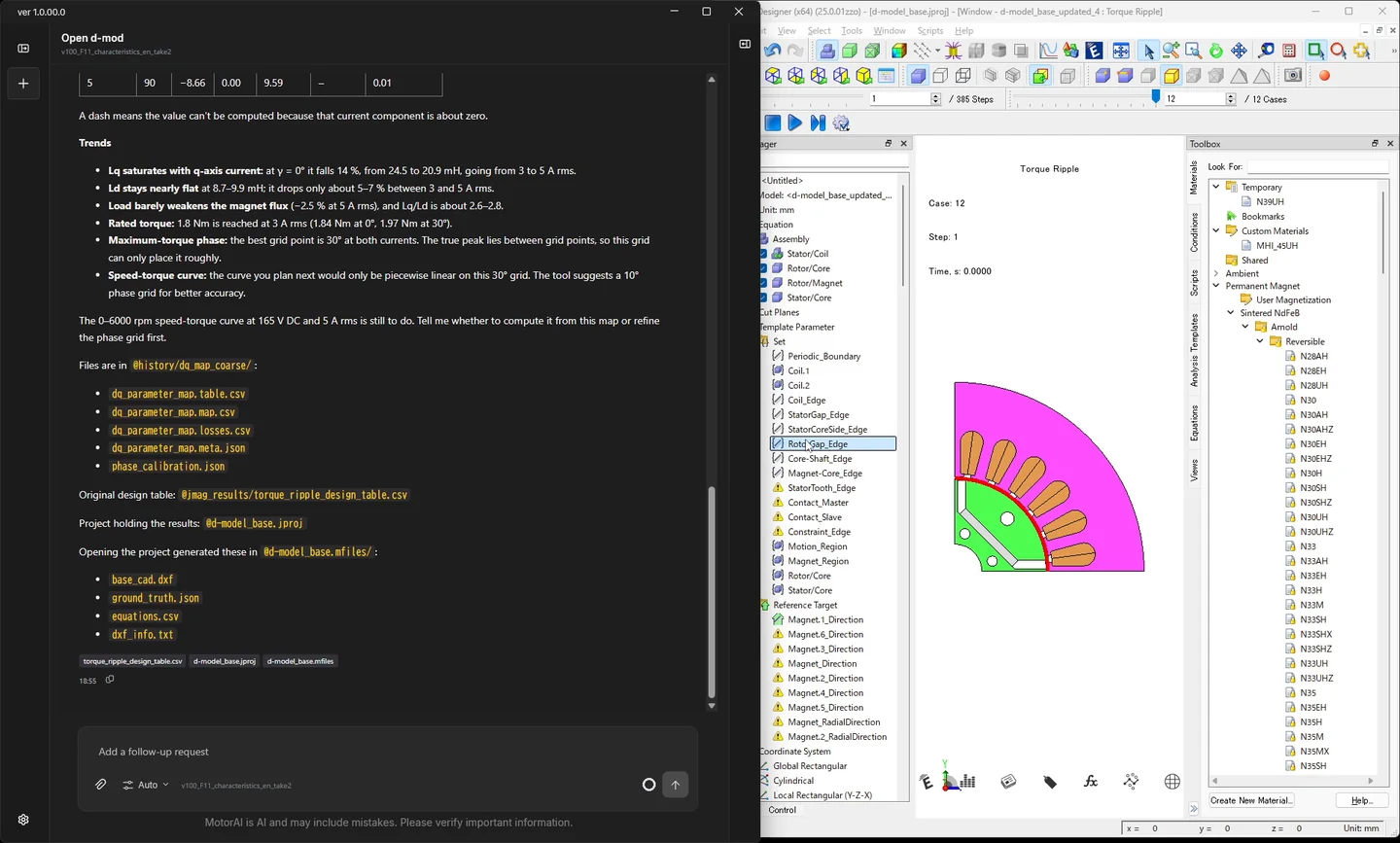
The second request is the speed-torque characteristic, calculated from the measured parameters under the voltage and current limits. No additional FEM analysis is run.
Using the parameters obtained, show the speed-torque characteristic for a 165 V DC bus, phase current up to 5 A rms, 0 to 6000 rpm as a figure, with linear axes (0 to 6000 rpm, 0 to the maximum torque). Briefly explain the control conditions used and the definition and value of the base speed.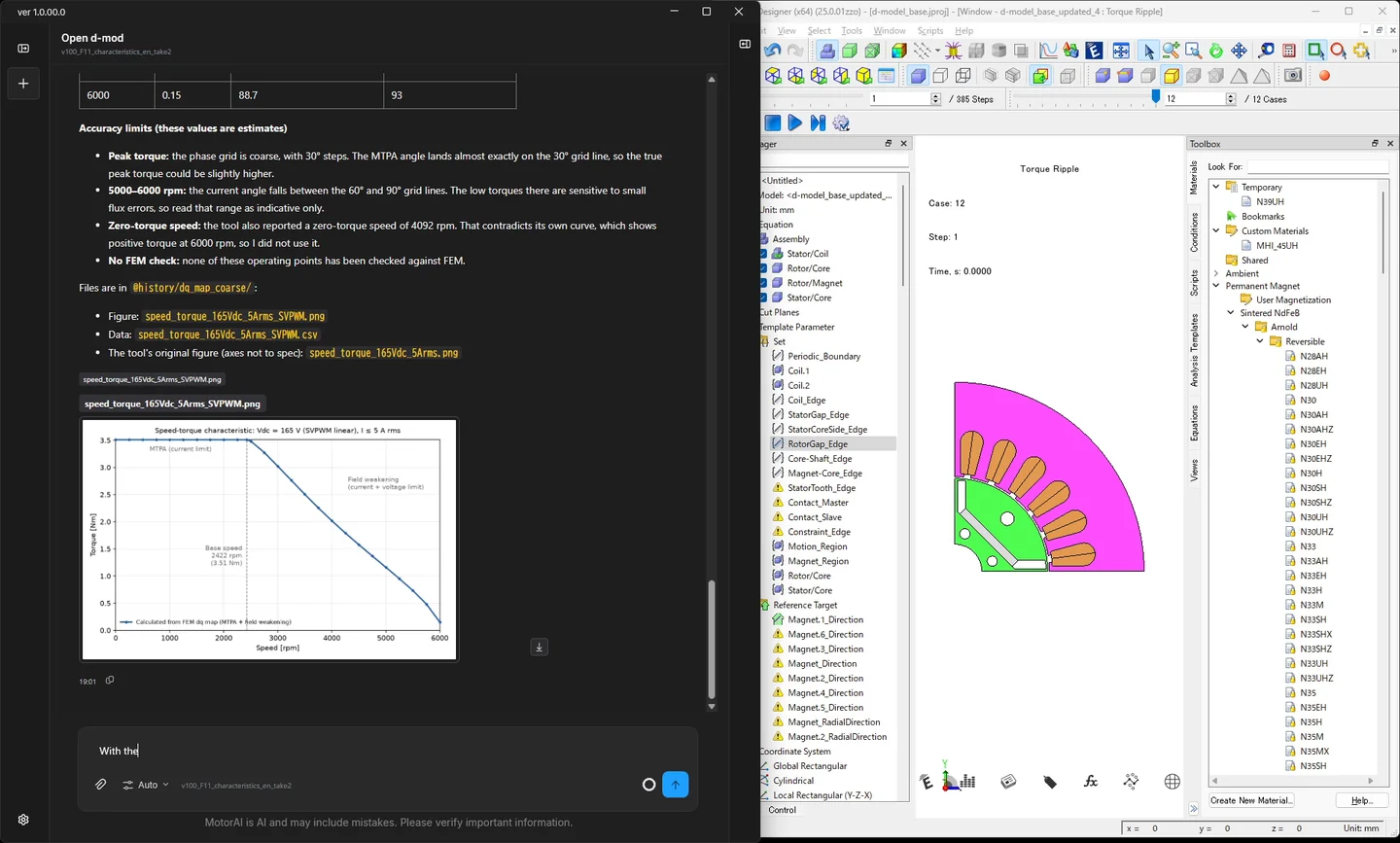
The third request is the efficiency map: efficiency on a grid of speeds and torques, drawn with the maximum-torque line and the efficiency at each grid point.
With the same voltage and current limits, make an efficiency map on roughly 5 speeds (500 to 6000 rpm) x 5 torques (0.5 Nm up to the maximum torque, evenly spaced) and show it as a figure with linear axes (0 to 6000 rpm, 0 to the maximum torque), the maximum-torque line and the efficiency at each grid point. State which losses are included and which are not, plus the number of extra cases and the expected duration, then run without waiting for my confirmation.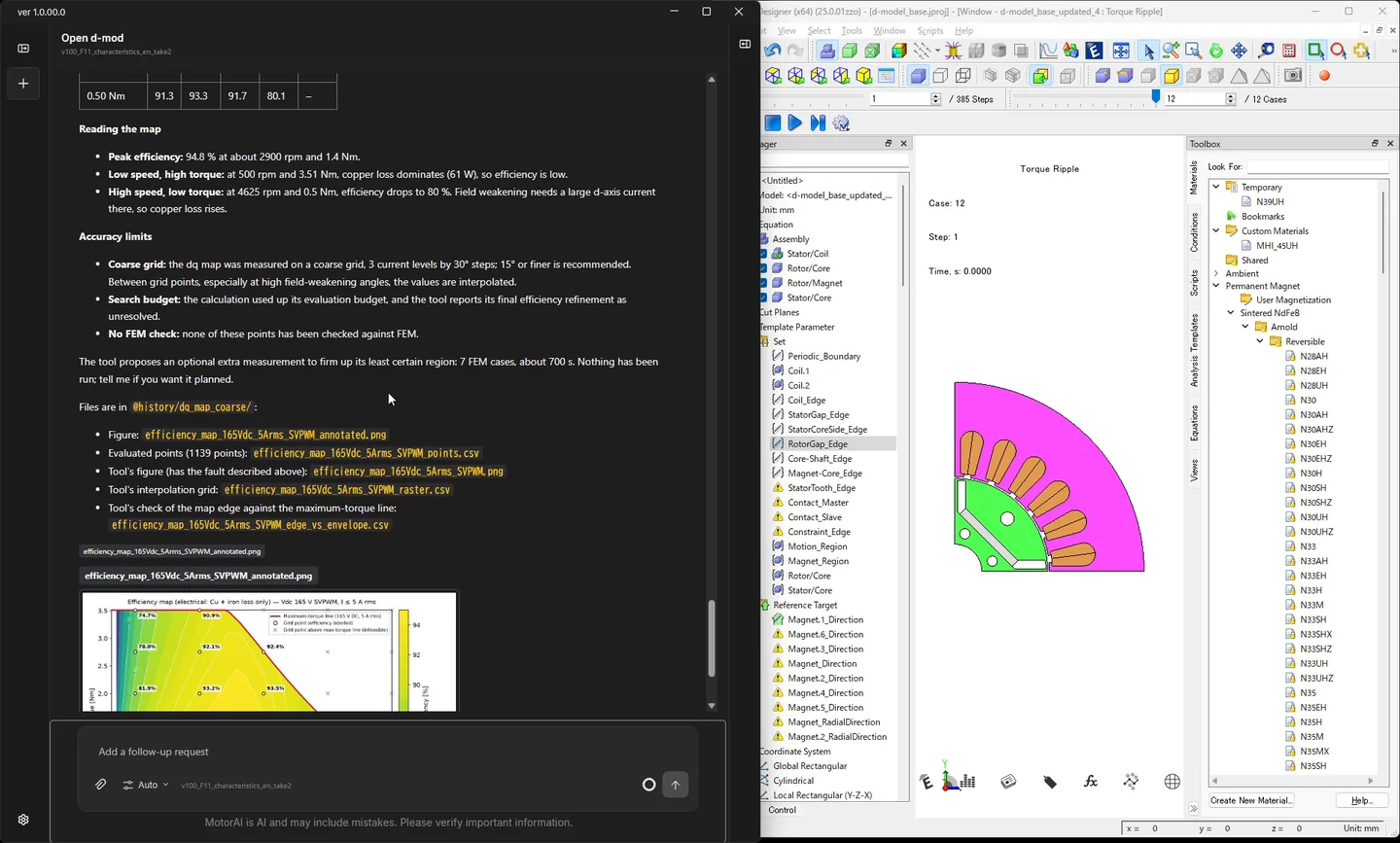
The shaded map is partly distorted. For the video the dq map was measured on a coarse grid (3 currents x 4 phases) and the efficiency map on 5 speeds x 5 torques, and the shading interpolates between those points. The calculated values are the numbers at the grid points; the shape of the shading depends on how coarse the points are. The AI also offers a finer measurement, and whether to run it is the user's decision.
A baseline model from a specification (video 11:29)
From a specification (JSON, PDF or text pasted into the chat), the AI takes you through the feasibility check and desk sizing to a baseline JMAG file with a minimum of analyses. In the video this takes four requests: sorting the requirements, building the model and planning the analysis, approving and running, and the final result.
The first request sorts the requirements into mandatory, desired and unspecified and separates the conditions stated in the specification from the assumed ones. Missing design conditions are confirmed through question cards.
Consider a baseline model from the specification in @spec_a.json .
Sort the requirements into mandatory / desired / unspecified, and separate conditions stated in the spec from assumed ones.
Check whether it can be built with the available templates, show candidates including pole and slot counts with your reasons, and the points that desk study cannot decide. A configuration the templates can build is acceptable as the provisional baseline, and template defaults are fine for materials the spec does not give. Do not execute yet.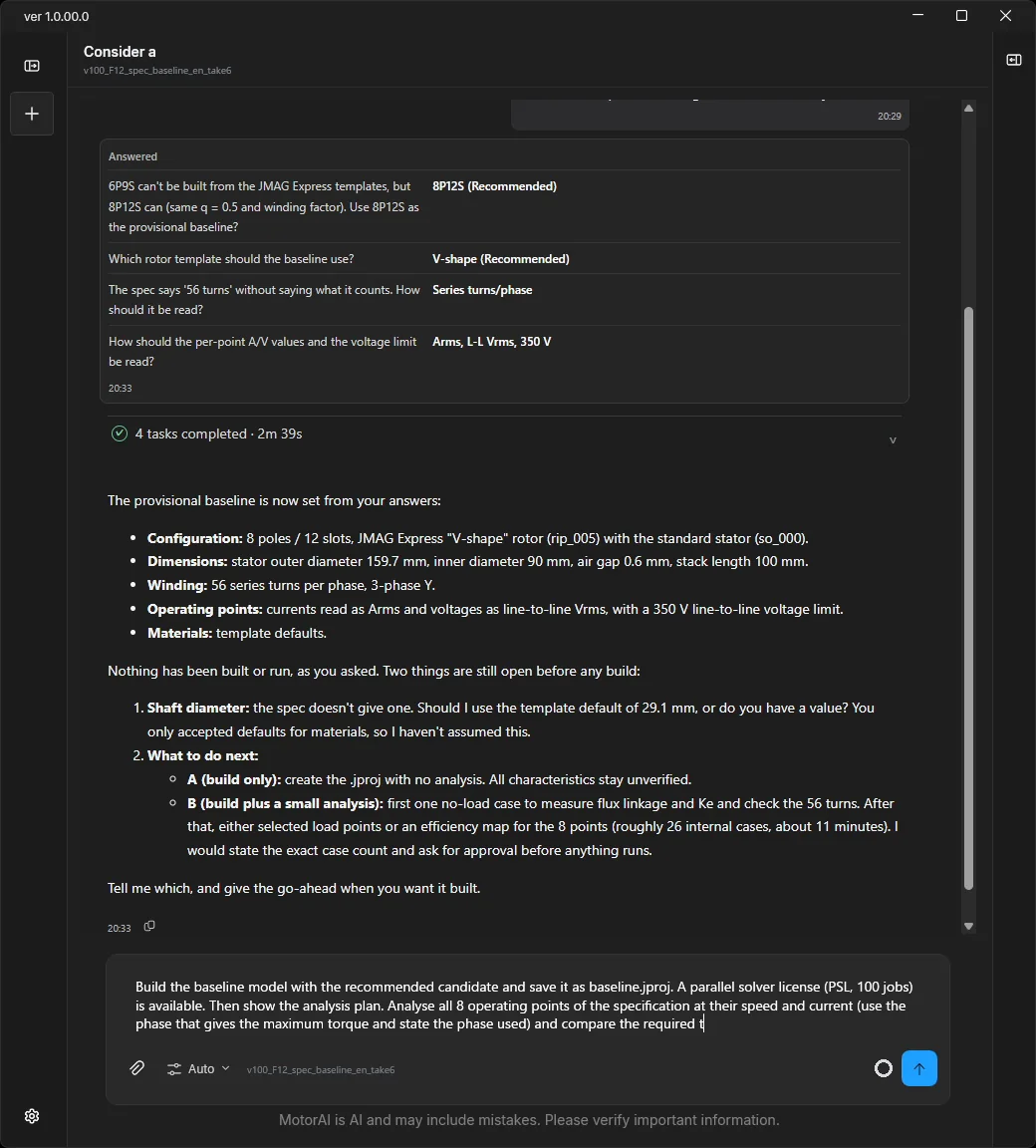
The second request builds baseline.jproj from the recommended candidate and shows the plan for analysing the eight operating points of the specification (the requirements to check, the analysis conditions, the number of cases and the duration), then waits for approval.
Build the baseline model with the recommended candidate and save it as baseline.jproj. A parallel solver license (PSL, 100 jobs) is available.
Then show the analysis plan. Analyse all 8 operating points of the specification at their speed and current (use the phase that gives the maximum torque and state the phase used) and compare the required torque with the analysed torque in a table.
State which requirements you will check, the analysis conditions, the number of cases and the expected duration, then wait for my approval.
If a file-name clash or an internal error blocks you, continue under another name (e.g. baseline_v2.jproj) without asking me. If a winding or analysis setting of the built model needs a correction (for example the coil pitch), correct it yourself, note it in the report, and continue.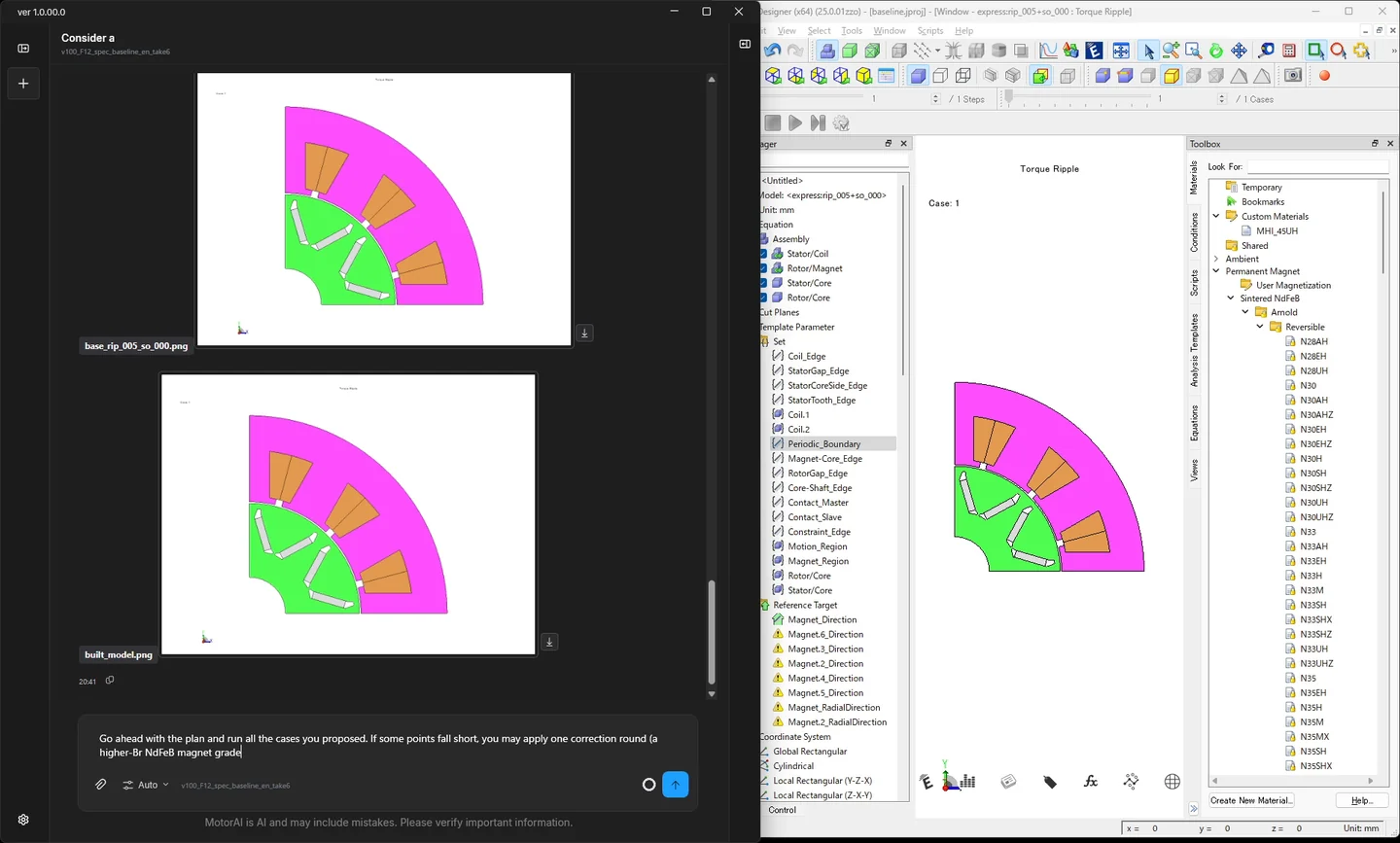
The third request approves the plan, allows one correction round if a point falls short, and fixes the format of the comparison figure.
Go ahead with the plan and run all the cases you proposed. If some points fall short, you may apply one correction round (a higher-Br NdFeB magnet grade or the number of turns) and re-analyse (the extra cases are approved too); keep both the before and after values in the table.
For the comparison figure, make a single scatter plot of torque against speed with the required and analysed values (before and after the correction) as markers only, never joined by lines, label each point with its speed, and keep the title on one line. Show only that one figure in the reply; do not include intermediate plots or circuit images. Mark items not evaluated as not evaluated.
The fourth request collects the final result. Before the correction the low- and mid-speed points fell short of the required torque; after raising the number of turns they exceed it. The reply also states where the line voltage exceeds the limit.
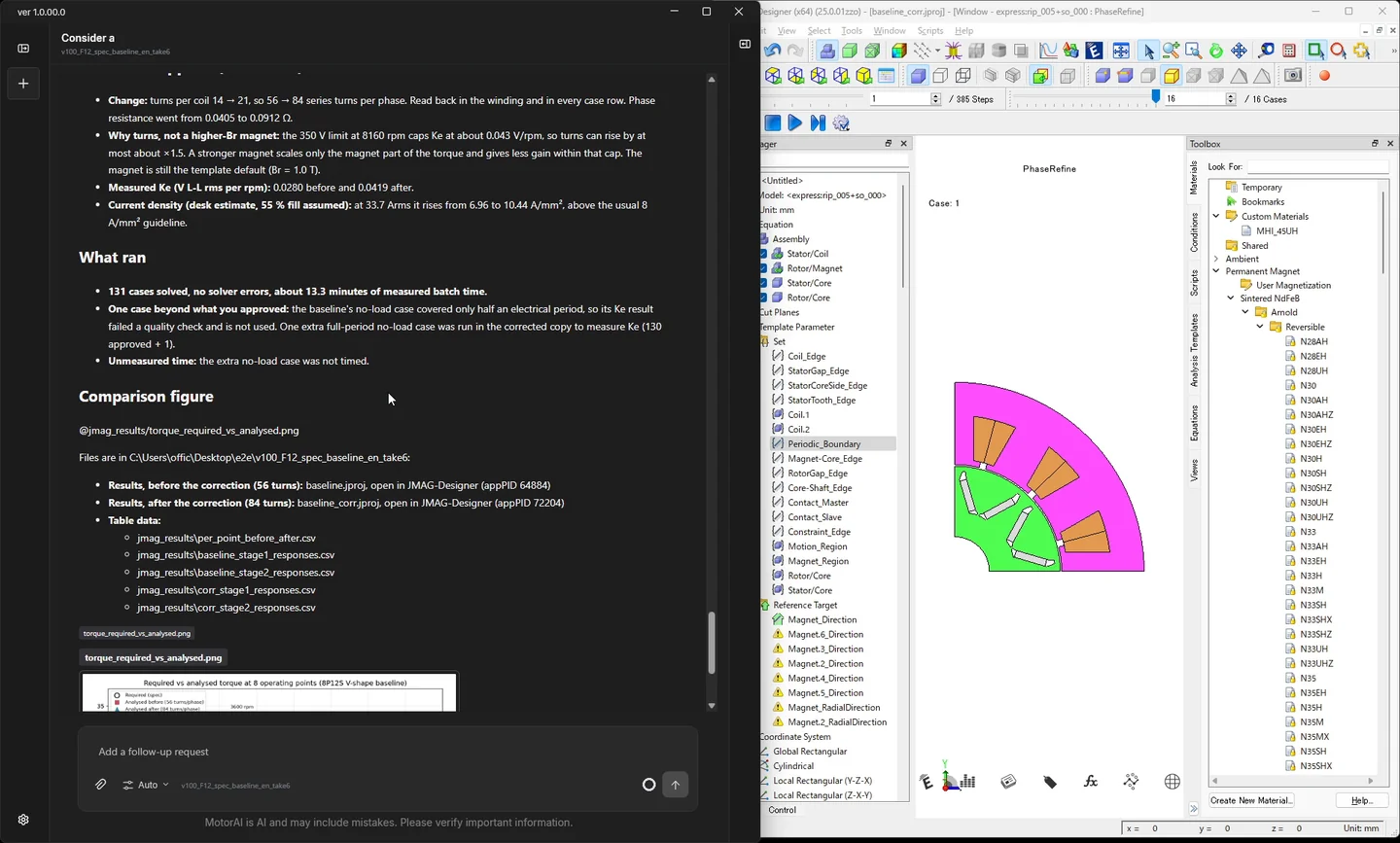
One correction round was approved, so the points that do not meet the voltage limit remain open, and the next steps are listed as options only. Whether to adopt the model as the baseline is the designer's decision.
Template grafting for JMAG Express (video 17:42)
In a model built from the JMAG Express templates, the rotor can be replaced with another template while the stator is kept. Grafting supports PMSM, SynRM, squirrel-cage induction and wound-field synchronous machines with any pole and slot count.
v_motor.jproj in the working folder is a V-magnet motor built from the JMAG Express templates.
Keeping the stator, I want to replace only the rotor with the two-layer V-magnet template.
Check pole count, main dimensions and air gap, and show the replacement plan (what is kept and what changes). Do not execute yet.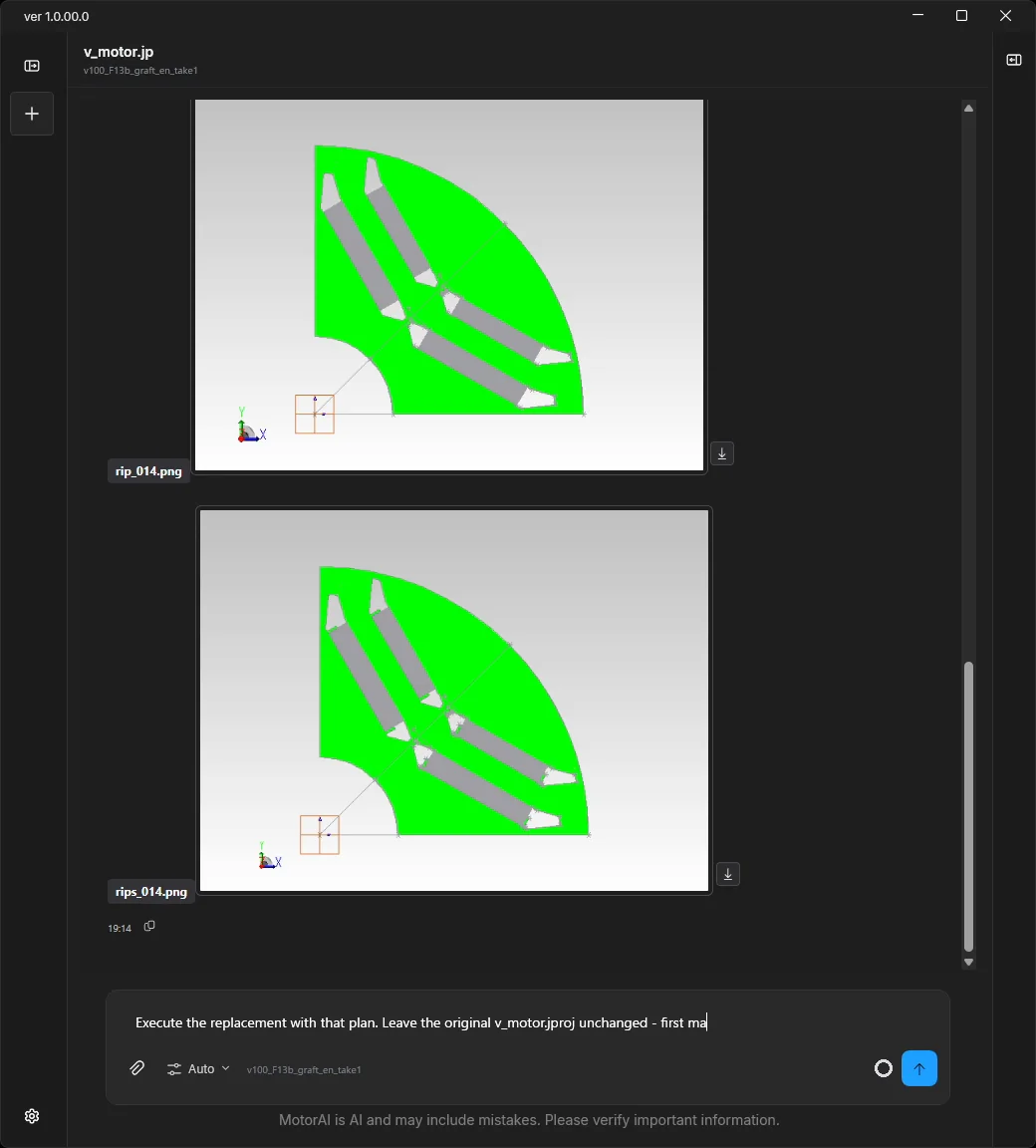
Execute the replacement with that plan. Leave the original v_motor.jproj unchanged - first make a copy named v_motor_2layerV.jproj yourself (do not ask me to do it) and run the replacement on that copy. Show the cross-section after the replacement and briefly summarize the differences from the original.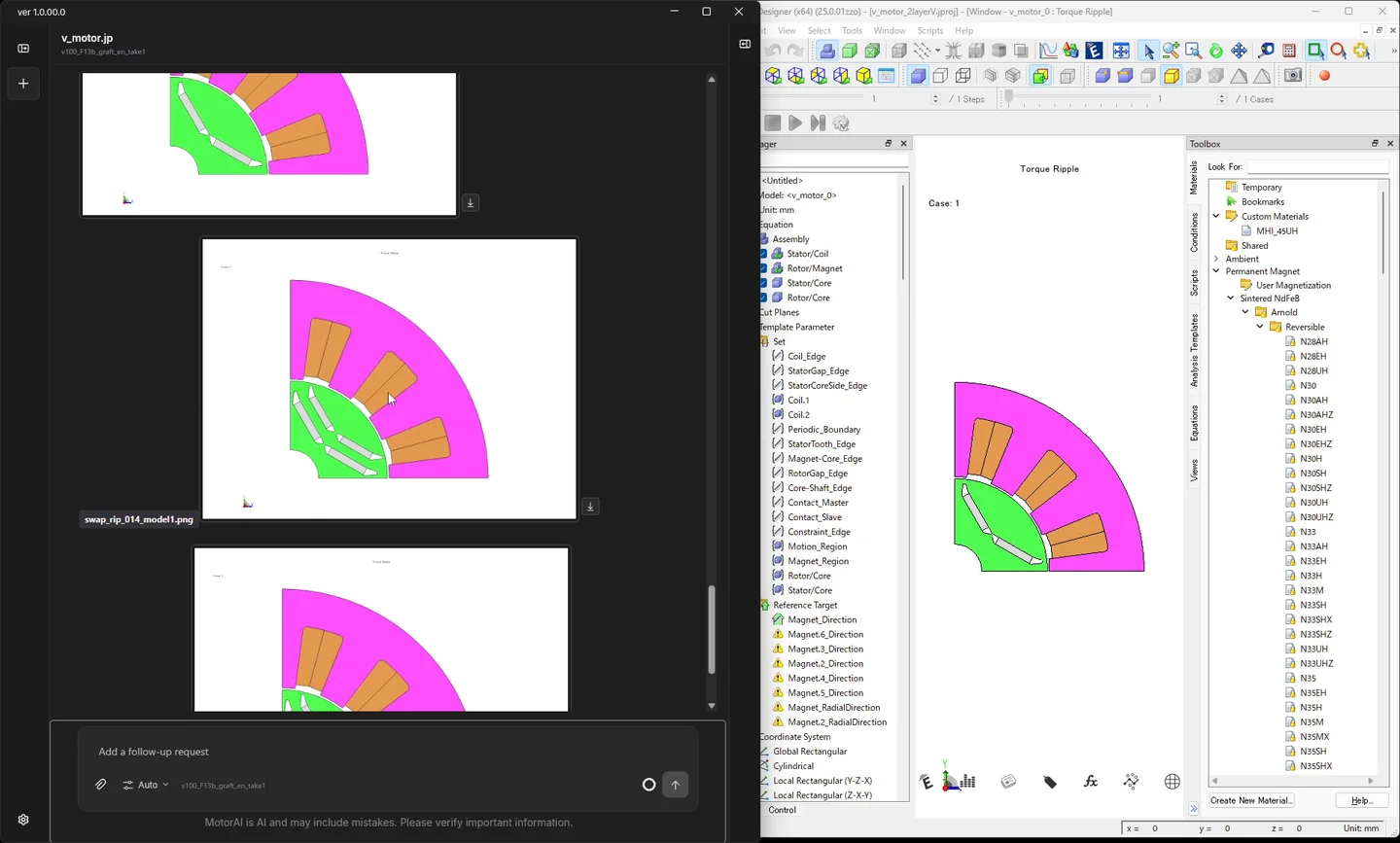
Batch runs of analysis-group optimization (video 19:12)
An analysis group created in the JMAG-Designer GUI can be reconfigured in place and optimized as a batch run on the scheduler. The video runs a small search: two magnet-dimension variables within ±10 %, population 8, 2 generations.
Open d-model_base.jproj in the working folder with JMAG and list the design variables (CAD parameters).
Pick two magnet-dimension variables, use ±10 % of their current values as the range, and configure an analysis-group optimization on the study "Torque Ripple": maximize average torque and minimize torque ripple, population 8, 2 generations. Show the configuration (variables, objectives, constraints, population, generations) as a table, save, and do not run yet. If something is unclear, choose a sensible default and continue without waiting for me.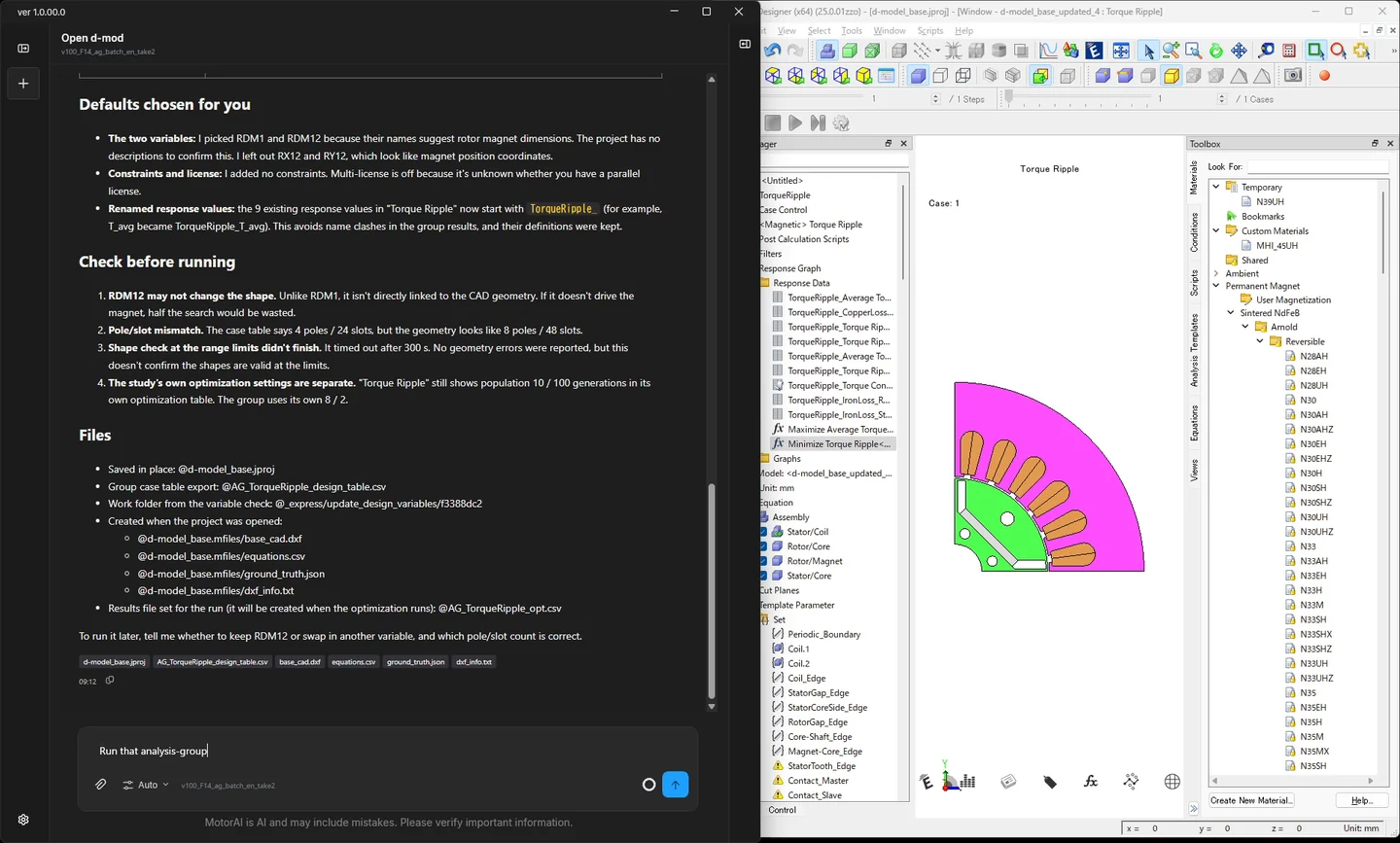
Run that analysis-group optimization as a scheduler batch. Before running, state the expected number of evaluations, the number of parallel jobs and the expected duration, then run without waiting for me. Use at most 4 parallel jobs (licence seats are limited). When done, compare the baseline with one representative candidate that satisfies the constraints under the same conditions. If there is none, say so.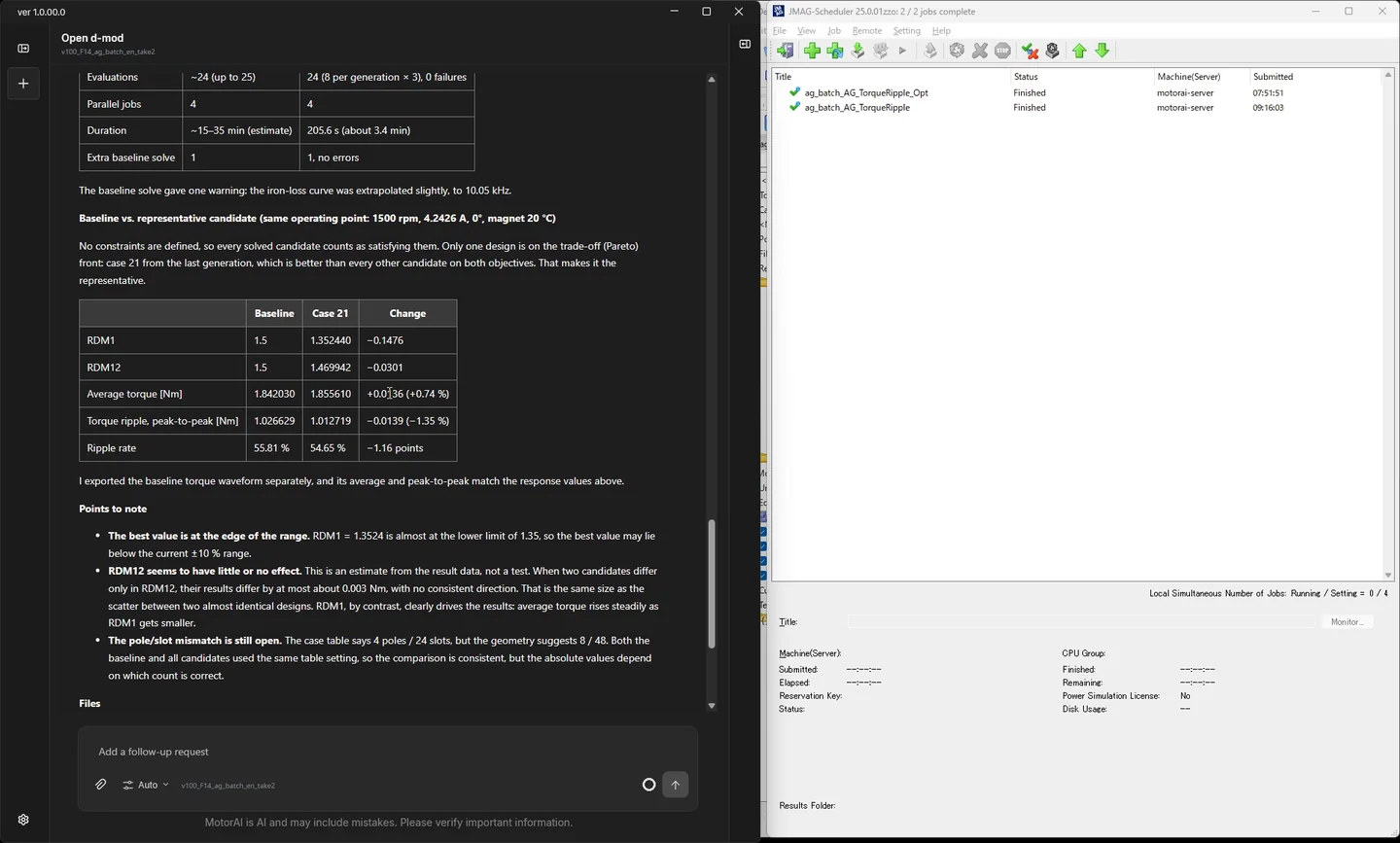
Population 8 and 2 generations are a small search for the video, and the improvement is small. For real work, set the population, generations and parallel jobs to suit your environment.
Other improvements and fixes
Improvements:
- The layout and icons have been redesigned: Settings are grouped by category and the file tree has moved to the right edge.
- Your message appears as soon as you send it, and "Preparing" is shown until the AI starts responding. Your text is no longer lost if sending fails.
- JMAG-Designer starts up significantly faster.
- The way the analysis AI loads its instructions was revised, cutting token usage by about 20 %.
- Analysis-group optimization now reports when Range Finder collapses a design variable's range or stops with an error.
- The motor theory and motor patent databases the AI refers to have been expanded.
- Under Connection in Settings you can choose between the MotorAI default endpoint and your own endpoint, such as an in-house LLM.
Fixes:
- Garbled text in the CSV preview (UTF-8 and Shift-JIS are now detected), stacked answer bubbles, an error shown after a successful response, and sending stuck after an error.
- The previous local server left running after using JMAG and restarting the app, and console windows opening repeatedly during JMAG operations.
- Analysis-group optimization configured but never run, and a run wrongly judged complete partway through.
- Greek letters, symbols, Japanese, Korean and Chinese characters dropped from PDF and Word reports, and equations not rendered in reports.
- Python run by the AI failing when PYTHONHOME or PYTHONPATH is set, and selection, copy and line-break issues in the chat screen.
v1.0.0 separates what the AI does from what the designer decides, and lets design work that involves analysis proceed from a single conversation. A good first step is to open one of your JMAG projects and ask for a plan in Plan mode. The release notes list every change.